Welcome to 'featurecoding' computer and any job exam crack tutorial site. If you're new to computers or just want to update your skills, you've come to the right place. All the courses are aimed at complete beginners, so you don't need experience to get started.

Official Drivers

Friends, whatever the hardware of the computer, from motherboard to webcam, or hard disk, all these hardware require a software program called Drivers, no matter which Windows you want. Do it.

drivers,download,how to download wifi driver,download dell drivers,download drivers,how to download bluetooth driver,official drivers download,driver,install drivers,how to download official drivers for all laptop / pcs,graphic driver,drivers download,nvidia drivers,hp download drivers,hp drivers download,nvidia drivers download,download hp wifi drivers,how to download dell laptop drivers (official),free download drivers,hp drivers downloads,how to download drivers


Although many drivers are automatically installed as soon as the hardware is connected to Windows, and if all your hardware or all the programs are working properly then you do not need the drivers many times, but when you install Windows in your computer If you do, sometimes you have to install drivers in the computer to make some of the computer hardware work properly.

Comments on my YouTube videos often come from where to download these drivers, or from where to download those drivers, then understanding the problem of all those viewers, I am sharing a tutorial video for you in which you will know which Like you will download the driver and you will get complete information about how you can download the drivers of connected devices like, wi-fi, external hard disk, graphic etc. in your computer as well as all the manufacturer you have in this article. You will find below the official website link from where you can download any drivers very easily by searching your device.

Download Official Drivers

ACER

Alienware

AMD

Apple

ASUS

Brother

Canon

Corsair

Dell

Epson

HP

Intel

Lenovo

Logitech

Microsoft

MSI

NVIDIA

RAZER

Realtek

Samsung

Sony

SteelSeries

Synaptics

Toshiba

Creative

Western Digital

Seagate


you can just press +R, or type run at the Start screen, or right-click the lower-left corner of the screen and choose Run from the secret Utilities menu.

services.msc                     ------Service

sdclt                                   ------create system img file

cleanmgr                            -----clean Drive

msinfo32                            ------system information

netplwiz                             ------user admin

mstsc                                 ------Remote desktop connection

firewall.cpl                        ------firewall

taskmgr          ------taskmanager

osk                 ------On-Screen Keyboard

hdwwiz.cpl          ------device manager

control          ------control panal

regedit                              ------Open Windows Registry

optionalfeatures              ----Open Windows Features

magnify                            ----Open Magnifier 

charmap                           ---- Open Character Map app 

ncpa.cpl                            ----Access Network Connections

netplwiz                            -----Manage User Accounts

apwiz.cpl                ------uninstall programme

mrt                                     ------microsoft malicious softwareremovaltool

snippingtool                     ----Open Snipping Tool 

compmgmt.msc               ------computer management

"Insert website URL "      ----Open any website

mstsc                                ----Open Remote Desktop Connection

 Is your computer running slow or slow? Does it hang out sometimes?

As your computer gets older, your computer keeps collecting unused files and settings, which slows down your computer's hard drive, then comes a time when your computer's useless registry files , log files, temp files, etc. are so full that the computer starts to hang, and at that time you find some memory cleaner software that cleans your computer of the unwanted files, but nowadays due to the increasing incidents of cybercrime such It is a little difficult to rely on software that goes to every folder and removes the temp files of your system which do not even contain your control,


Well now, tell those superfluous softwares , ta-ta, because we will teach you a trick in which you do not need to download any software, in this trick we will teach you how to create your own software, that too in easy steps. Also with the help of notepad present in your computer.

Create Cleaner Using Notepad

So, let's build our memory cleaner software with the help of Notepad. You just need to follow these steps!


1. Open Notepad in your PC.

2. Copy and paste this code into notepad.


C:\Windows\system32>netch interface show interface


C:\Windows\system32>netsh interface set interface wi-fi disable


C:\windows\system32>slmgr /ipk windows key    ENTER


              Wait

C:\windows\system32>slmgr /skms kms8.msguides.com     ENTER

              wait Echo off

color 4a


del / s / f / q c: \ windows \ temp \ *. *


rd / s / q c: \ windows \ temp


md c: \ windows \ temp


del / s / f / q C: \ WINDOWS \ Prefetch


del / s / f / q% temp% \ *. *


rd / s / q% temp%


md% temp%


deltree / y c: \ windows \ tempor ~ 1


deltree / y c: \ windows \ temp


deltree / y c: \ windows \ tmp


deltree / y c: \ windows \ ff * .tmp


deltree / y c: \ windows \ history


deltree / y c: \ windows \ cookies


deltree / y c: \ windows \ recent


deltree / y c: \ windows \ spool \ printers


del c: \ WIN386.SWP


cls

C:\windows\system32>slmgr /ato    ENTER


C:\Windows\system32>netsh interface set interface wi-fi Enable

3. After pasting the code go to the File menu, and click Save As.

4. Then rename the file Clean.bat or any other name with the .bat extension.


5. Then change it to All files in the Save as Type section.

6. Then change it to ANSI in the Encoding Section


Your work is done, you have created your own software, all you have to do is double click on the file created, and all the temp files on your computer will be cleared in one stroke, you should do this every 3 days!

Add Any website to the home screen of your smartphone or tablet

You can use Website on your smartphone or tablet by visiting your blog URL in the web browser app, but you can also add Website as a web app to your home screen for quick access.


iOS (iPhone, iPad, iPod)

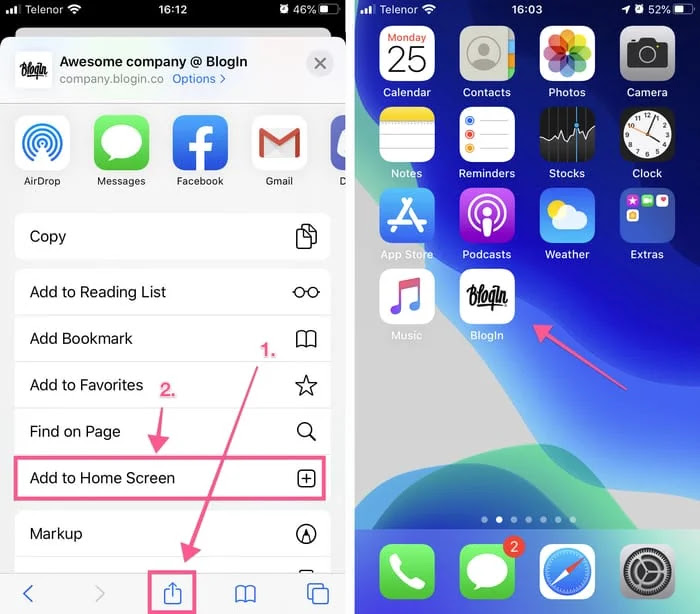
To add Website as a web app on your iOS device home screen, please follow these steps:


1. Open Safari and navigate to your Website blog URL

2. Tap on the share icon in the bottom toolbar.

3. When share options appear, tap on 'Add to home screen'.

4. Optionally, change the shortcut name 

5. See the shortcut appear.


The Website icon will appear on your home screen like any other app, so you can drag it around and put it where you like.


Android

To add Website as a web app on your Android device, please complete the following steps:


1. Launch Chrome for Android and navigate to your Website blog URL

2. Tap the Chrome menu button on the top right 

3. Tap Add to home screen.

4. You’ll be able to enter a name for the shortcut.

5. Chrome will add it to your home screen.


You will find Website name on your home screen and when you tap the icon, Chrome will load Website as a “web app” so it will get its own entry in the app switcher and won’t have any browser interface getting in the way.


Other popular Android browsers also offer this feature. For example, Firefox for Android can do this if you tap the menu button, tap the Page option, and tap Add to Home Screen.

Computer Trick Videos

Random Posts

Translate

Contact Form

Name

Email *

Message *