 December 04, 2020

Add Any website to the home screen of your smartphone or tablet
You can use Website on your smartphone or tablet by visiting your blog URL in the web browser app, but you can also add Website as a web app to your home screen for quick access.
iOS (iPhone, iPad, iPod)
To add Website as a web app on your iOS device home screen, please follow these steps:
1. Open Safari and navigate to your Website blog URL
2. Tap on the share icon in the bottom toolbar.
3. When share options appear, tap on 'Add to home screen'.
4. Optionally, change the shortcut name
5. See the shortcut appear.
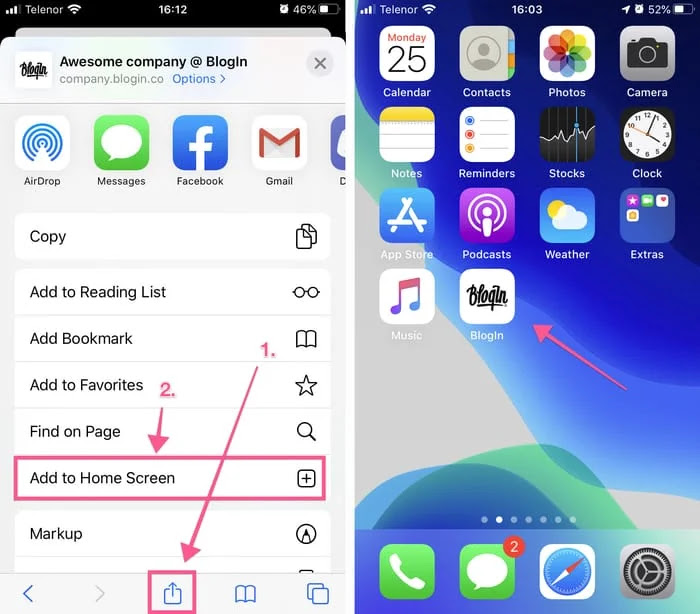
The Website icon will appear on your home screen like any other app, so you can drag it around and put it where you like.
Android
To add Website as a web app on your Android device, please complete the following steps:
1. Launch Chrome for Android and navigate to your Website blog URL
2. Tap the Chrome menu button on the top right
3. Tap Add to home screen.
4. You’ll be able to enter a name for the shortcut.
5. Chrome will add it to your home screen.

You will find Website name on your home screen and when you tap the icon, Chrome will load Website as a “web app” so it will get its own entry in the app switcher and won’t have any browser interface getting in the way.
Other popular Android browsers also offer this feature. For example, Firefox for Android can do this if you tap the menu button, tap the Page option, and tap Add to Home Screen.


